
↗ Picktool StudioYour screen. A clearer way to explain it.Explore the toolkit ↗

SCREENSHOTS & SCREEN RECORDING FOR CHROME

CAPTURE STUDIO / LOCAL-FIRST WORKSPACE

Capture clearly.
Explain better.

Screenshots, screen recordings, annotations and notes. One local Chrome workspace to turn what you see into something people understand.

Add to Chrome — Free
No accountLocal processingNo API key
WORKFLOW PREVIEW LOCAL FIRST
Creative reviewEXAMPLE WORKSPACE
THE NEXT STEP, MADE OBVIOUS

A good idea deserves
a clear explanation.

Capture the useful detail. Add the point.
Share something people understand.

READY FOR REVIEWMake the action visible.
YOUR NEXT STEPReview direction ↗
Selection → toolbar → explanationExplore the full studio ↓

FROM SCREEN TO STORY

INTERACTIVE FEATURE ILLUSTRATION
Capture Studio / Capture what matters LOCAL FIRST
WorkspaceCreative briefAssetsEXAMPLE PROJECT

MAKE THE NEXT STEP OBVIOUS

A good idea deserves
a clear explanation.

A shared point of view. A few useful details.
One next step that everyone can understand.

READY FOR REVIEW

Give the detail room to stand out.

Keep the message focused. Make the next action visible.

Review the creative direction together ↗

A calmer visual language.

Clear hierarchy. Comfortable spacing.
01 / 05Catch exactly what matters.Select an area. Keep the context. Get straight to editing.

Motion illustrates the workflow using example content.

CAPTURE THE DETAIL✳MAKE THE CONNECTION✳KEEP THE GOOD STUFF✳STAY IN YOUR FLOW

01 / MAKE IT UNMISSABLE

One good arrow.
A whole lot clearer.

Point to the setting. Number the steps. Hide a sensitive detail.
Go on—try a few tools on this example.

YOUR LITTLE CLARITY LAB INTERACTIVE DEMO
Creative reviewEXAMPLE WORKSPACE
THE NEXT STEP, MADE OBVIOUS

A good idea deserves
a clear explanation.

Ready for feedback

Make the next action visible.

One shared point of view.
A few useful details. A clear next step.

team@example.com
YOUR NEXT STEPReview the
creative direction.
Open the brief ↗
1Start here. Make this the focus.
REDACTED
PLAIN CAPTUREWITH A CLEAR POINT
← Before After →
Arrows & shapesEditable text & calloutsNumbered stepsSolid redactionMove · Resize · Undo

02 / YOU KNOW WHEN YOU HAVE ENOUGH

The whole page.
Or the part that
tells the story.

Selected area, visible page, page element or a scrolling capture. Keep the scope in your hands.

Stop & edit.End the capture early. Keep the completed part.
Cancel discards it instead.

Supported app panels are included. Protected, infinite and virtualized pages can limit results.

SCROLLING CAPTUREILLUSTRATED WORKFLOW
Your next big idea.

A page full
of possibility.

✳
Keep the part that matters.

Capture the detail. Make the connection.
Give your next idea a little room.

A clear next step.

Make it something people can understand.

↗
The rest can wait.
Capturing the story…
Watch it move. Stop when you’re ready.

03 / WHEN THE STORY NEEDS TO MOVE

A quick walkthrough.
A cleaner final cut.

Screen, camera, tab or a custom tab region. Add your voice, pause when you need to, then trim the beginning and end.

THE STUDIO IN MOTION24 SECONDS · ACTUAL PRODUCT SCREENS
SCREENSHOTS → ANNOTATION → RECORDING → WHITEBOARDS & NOTES

Choose your view.

Desktop, window, camera only, tab or a custom tab region. Optional microphone, shared audio and camera overlay.

Keep the useful part.

Trim the start/end, remove audio, export a frame or restore the original. Basic editing inside your browser.

Explain as you go.

Use source-page annotation controls to point out the detail while you record. Pause, resume and stop on your terms.

Tour transcript & recording limits

The video is a motion walkthrough of actual product screenshots, not a continuous screen recording: Screenshot Studio, the recording editor, Whiteboard and the personal notebook. Screenshot and recording processing are local. Video editing is basic, not multitrack. Export recordings before closing; they remain in memory and stop around 256 MB. Trim renders in real time. Formats and shared audio depend on the browser and device.

04 / THERE’S MORE IN YOUR CAPTURE

Words in a picture?
Put them back to work.

Extract English text on your device. Review it, edit it, copy it and keep moving.

FROM YOUR IMAGE

The best ideas deserve
a clear explanation.

EDITABLE TEXT

The best ideas deserve a clear explanation.

Illustrated OCR example. Recognition is English-only and may need correction.

YOUR SCREEN. YOUR CONTROL.

Local by default.
Share by choice.

Capture, editing, OCR and recording run on your device. The extension has no account, developer analytics or automatic upload. This website uses optional, consent-based Analytics; see the privacy policy.

How your data is handled No personal API key required.

05 / MAKE ROOM FOR WHAT COMES NEXT

Think out loud.
Keep the good stuff.

A whiteboard for the explanation. A separate notebook for the thought you don’t want to lose.

WHITEBOARD

A little space for
the next good idea.

Capture⟶Explain⟶Share
12 saved pages · 6 backgrounds

Try moving the sample note ↗

PERSONAL NOTES
PINNED / EXAMPLE NOTE

Keep the thought.
Find it when it matters.

A reminder from the creative review:

Give every idea a clear next step.
↗ Keep a source link with the thought.Search · Pin · Done · Reminders

06 / A WORKSPACE THAT KNOWS ITS PLACE

Big screen.
Small screen.
Your way.

Turn it sideways. Make it compact. Dock it left or right. Your tools should fit around your work.

Place it

Interactive layout illustration. Change the real extension in Settings.

More room
for your work.

The important thing stays in the foreground.

•••
YOUR TOOLS. YOUR SPACE.

THE COMPLETE DIRECTORY / 21 FEATURE GROUPS

Every tool.
Nothing buried.

/

Capture your way

Selected area, visible page, page element, timed capture and screen/window stills.

Stop & edit

End a scrolling capture early and keep the completed portion. Cancel discards it instead.

On-page annotations

Arrows, lines, shapes, pen, highlighter, text, callouts, numbered steps and emoji.

Local English OCR

Extract English text on your device. Review, edit, copy or save the result.

Redact before sharing

Solid redaction and pixelation for exported images. Delete sensitive source captures separately.

An editable final touch

Crop, resize and use image tools. Add padding, a background preset or a browser frame.

Screen + camera recording

Desktop, window, camera, tab or custom tab region. Choose devices, audio and camera placement.

Basic video editing

Trim the beginning/end, remove audio, export a frame and restore the original. No multitrack timeline.

Saved whiteboard pages

Up to 12 pages, six canvas backgrounds, optional planning templates and editable JSON backups.

Your personal notebook

Search, pin, mark Done and save source links. Notes stay separate from Whiteboard pages.

Optional reminders

Add note reminders with browser alarms and notifications. Chrome and notification permission are required.

Compare 2–4 views

Bring generic page views together in a comparison collage for review and explanation.

A toolbar that fits

Horizontal or vertical. Three sizes. Icons or names. Float, dock left/right or minimize.

Search & active tools

Find commands in More. Disable individual effects or reset active effects without deleting drawings.

Presenter toolkit

Spotlight, Presenter, fading ink and step-by-step Lesson reveal keep an explanation focused.

Clock & countdown

Keep time visible while you work or teach. First-use tips help you get started.

Zoom into the detail

Live chart-canvas zoom and ordinary-page snapshot zoom. Scrolling/resizing ends snapshot zoom.

Your shortcuts, your way

Customize drawing keys in Settings and global commands through Chrome’s shortcut settings.

Export & share

PNG, JPG, WebP, clipboard and native print. Supported device sharing or WhatsApp/email drafts; attach files manually.

Recent captures

Return to source screenshots in the local gallery. Download edited work before closing the editor.

A helpful first hello

An install/update walkthrough, searchable feature guide and replayable first-use tips.

FIND THE RIGHT FIT

Choose your workflow.
See the difference.

Different tools shine in different places. Here’s how the documented workflows compare.

Compare Capture Studio with
Capture Studio and selected competitor feature comparison
What you want to doCapture StudioChrome extensionAwesome ScreenshotBrowser extension / cloud

Awesome Screenshot is a strong choice for cloud sharing and team integrations. Capture Studio focuses on a local screen workspace with whiteboards and separate notes.

Sources, scope & comparison notes ↗

Reviewed October 27, 2026. “Not documented” means the feature was not described in the linked official materials, not that it cannot exist. Product capabilities, editions and plan limits can change. Capture Studio details follow the supplied v1.6.2 product materials and current Web Store description; this page is not an independent extension-code audit. This is a feature comparison, not a ranking or speed benchmark.

ShareX is a Windows desktop application; this is a workflow comparison, not a claim that it is a Chrome extension. Awesome Screenshot’s desktop-only OCR is distinguished from its browser extension.

A FEW THINGS WORTH KNOWING

Good questions.
Clear answers.

No guesswork about what it does—or where its limits are.

Ask us something
What is Capture Studio?+

A Chrome extension for screenshots, on-page annotation, screen recording, basic video editing, local English OCR, whiteboards and separate personal notes. It was previously called Candlemark.

Do I need an account or an API key?+

No account or personal API key is required for the included local tools. Install the extension, choose a feature and grant the relevant browser permission when asked.

Does full-page capture work on every website?+

It supports document scrolling and supported app panels. Protected pages, infinite feeds, virtualized content and constantly changing layouts can limit the result. Stop & edit keeps the completed portion; Cancel discards the capture.

Which languages does text extraction support?+

The bundled OCR currently recognizes English. Processing runs locally. Recognition quality depends on the source image, so review the extracted text before using it.

What can I edit in a recording?+

Trim the beginning and end, remove audio, export the current frame or restore the original. This is basic editing, not a multitrack editor. Trimming renders in real time. Export before closing; recordings stay in memory and stop around 256 MB. WebM and MP4 availability depends on your browser.

Are my captures automatically uploaded?+

No. The included capture and editing workflow runs on your device. You choose what to download or share. Notes, drawings and preferences use local extension storage; recordings and edited screenshot projects need to be exported before closing.

Can I share to WhatsApp, email or Google Drive?+

Use supported native file sharing, or download a file and open a WhatsApp/email draft. Attach the file manually and choose whether to send it. Google Drive is not enabled in the default build; it needs publisher OAuth configuration. Local export works independently.

How do I get back to using the page normally?+

Press Esc or double-click blank space to return page controls. You can hide or minimize the toolbar. Change drawing keys in Settings; browser-level commands are customized at chrome://extensions/shortcuts.

A CLEARER WAY TO WORK WITH YOUR SCREEN

From “look at this”
to “I get it.”

Your next great explanation
starts right here.

Add Capture Studio to Chrome
No account required. Local processing. Made for the way you actually work.

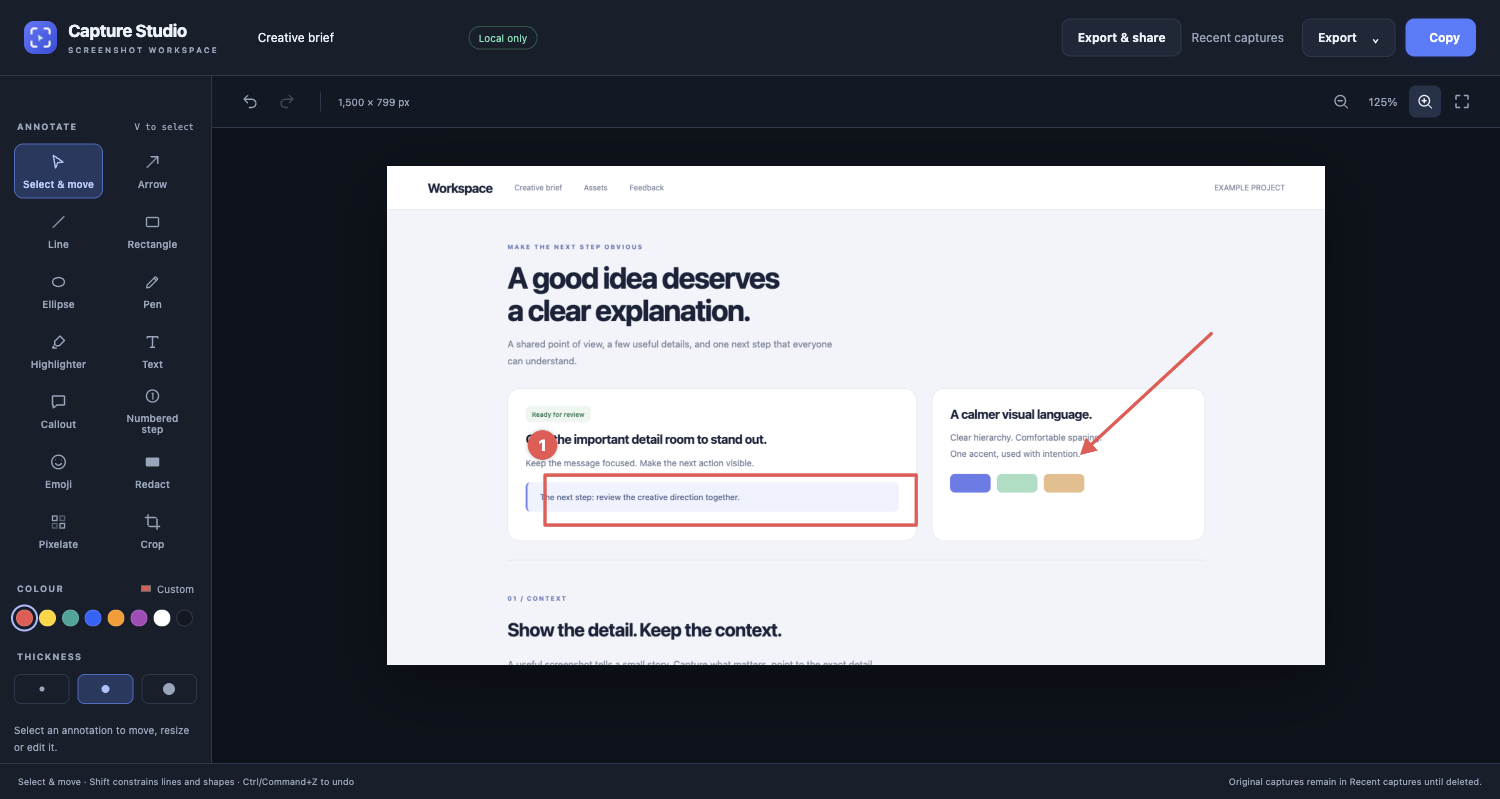
Actual Capture Studio product screen

Actual product UI in an example workspace. The complete image is shown without cropping.

Capture Studio · a 24-second motion walkthrough

Motion walkthrough of actual product screenshots. No audio; English captions included.