Treat visible artwork, the cut path, bleed and the safe area as separate requirements. Set the physical finished size, use the printer’s own template and file rules, and inspect a proof. An attractive AI preview or SVG extension does not prove a sticker file is production-ready.
A sticker mockup can hide the details that determine whether the real product prints and cuts correctly. The design may have no usable cut contour, insufficient artwork beyond the edge or text too close to the trim. Prepare the file for the actual production route before placing an order or cutting a full sheet.
This guide covers a proposed preflight process. It does not supply a universal bleed measurement or claim that a particular AI design tool exports every printer's required file. Obtain the specification for the exact supplier, machine and material you plan to use.
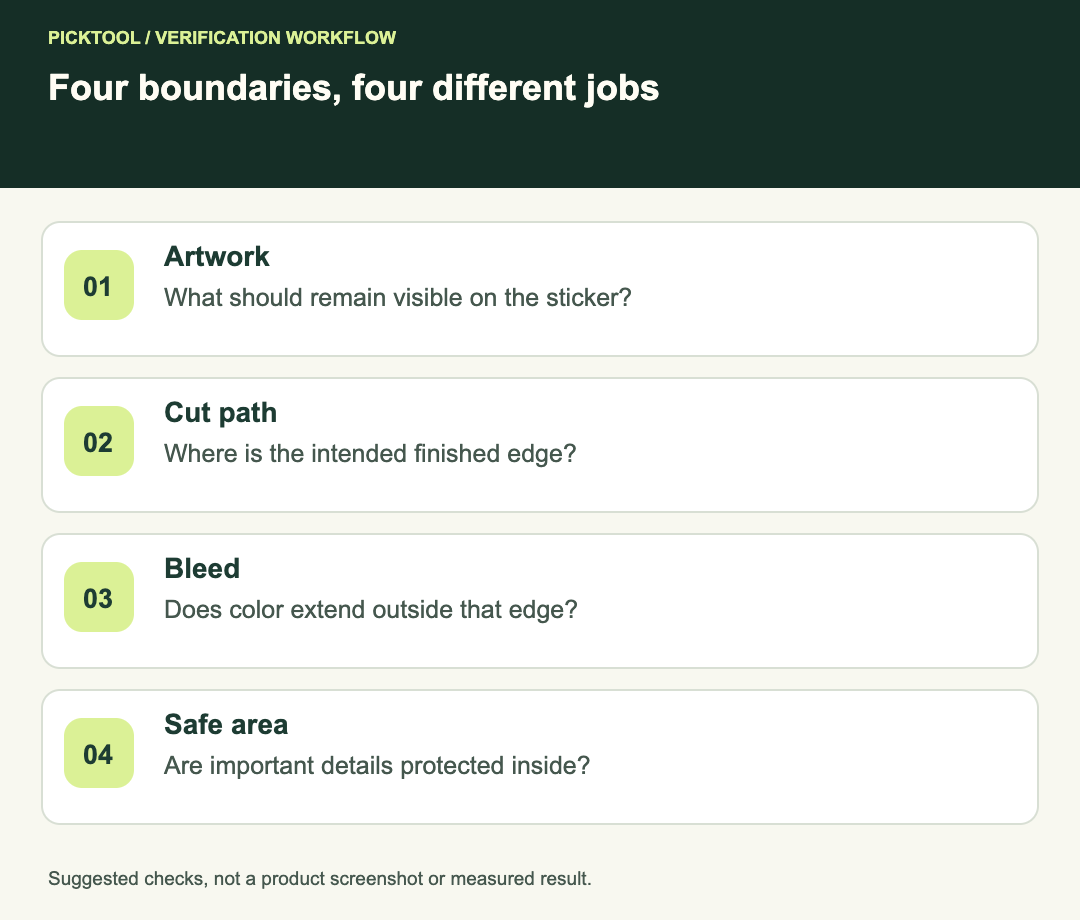
Separate the four boundaries
The visible artwork is what the customer sees. The cut path describes the intended finished outline. Bleed extends color or imagery beyond the trim so small cutting differences do not reveal an unwanted blank edge. The safe area keeps important content inside the cut. These boundaries should be identifiable even when they are not all visible in the final print.
Adobe's official print documentation describes bleed as artwork extending beyond the trim and provides controls for marks and bleed when exporting a PDF. It directs users to match print-shop specifications. Those page-production controls do not automatically create a sticker vendor's custom contour-cut path. [1]
| Element | Purpose | Preflight question |
|---|---|---|
| Visible art | Delivers the design | Is every required detail present? |
| Cut path | Defines the finished shape | Is it the exact route the supplier accepts? |
| Bleed | Covers cutting tolerance outside trim | Does artwork extend by the required amount? |
| Safe area | Protects text and important details | Are critical elements far enough inside? |
Choose the production route first
A commercial printer may request a particular PDF setup, spot-color contour, layer name or template. A home cutter can use a different print-and-cut process. Do not combine instructions from unrelated workflows into one guessed file.
For Cricut specifically, its official Print Then Cut guide describes printed sensor markings and recommends keeping the print-and-cut process in the same supported flow. It warns that printing a saved PDF outside that flow can produce incorrectly sized marks. It also distinguishes decorative Offset from the bleed applied at printing. [2]
If you are using a different cutter or supplier, use its documentation instead. A contour that is accepted by one system may be ignored or printed as visible artwork by another. Confirm which lines should be non-printing production instructions and how the supplier expects them to be named or colored.
Set physical size before judging image quality
Write down the finished width and height in millimeters or inches. Then inspect raster detail at that size. A large pixel count can still be inadequate for a much larger print, while a small sticker may not need the same file dimensions as a poster.
For a fictional square design placed at two inches wide, a 600-pixel image supplies 300 pixels per inch at that placement. This is arithmetic, not a universal printer requirement. Use the supplier's requested effective resolution, and do not claim that changing a metadata number creates missing detail.
Check small letters and thin lines at actual size. A label that looks readable while zoomed in may fail as a small physical sticker. Print a size reference on ordinary paper if useful, while recognizing that it cannot prove the final material, color or cutting accuracy.
Inspect vectors and raster content separately
If you deliver SVG, inspect its contents. The SVG format can contain raster image elements, so the extension alone does not prove that all artwork is vector. [3] A raster illustration inside an SVG wrapper may still be usable if the printer accepts it and the placed resolution is sufficient, but it is not the same as editable vector geometry.
For a cut contour, inspect whether the outline is closed, intentional and free of stray duplicate paths. Tiny isolated islands or sharp internal notches can be difficult for a particular production process. Ask the supplier about minimum features instead of inventing a one-size-fits-all tolerance.
Keep the printable artwork separate from construction guides. A bright contour line may be a required production convention in one template and an unwanted printed border in another. Use the actual vendor instructions to decide.
Add bleed and safe space from the template
Extend the intended edge color beyond the cut path by the specified amount. Do not simply enlarge the entire design if that also moves important text or distorts the illustration. The bleed should support the intended finished design, not change it.
Keep names, logos and key details inside the supplier's safe area. A decorative border very close to the edge can make small cutting variation conspicuous even if no text is lost. Review whether the design remains acceptable across the tolerance described by the producer.
For Cricut, the reviewed guide explains that its print bleed may look fuzzy before cutting and is intended to be trimmed away. [2] That does not justify ignoring a fuzzy subject or unreadable text inside the finished cut. Inspect the region that will remain on the product separately from the outside bleed.
Review a proof before a full run
Use the supplier's proof process or a small authorized test run. Check finished dimensions, contour position, edge coverage, text, color expectations and material suitability. A digital mockup approves appearance only to the extent the proof process represents the final product.
Save the approved file and proof revision together. If the supplier changes the artwork, inspect the revised proof rather than approving the old preview from memory. A useful handoff includes finished size, file revision, intended material and the relevant template version.
Inspect SVG paths and raster dependencies before a print handoff ↗
See UseIt Studio's source-backed design overview before checking its actual export ↗
Final production checklist
- The production route and current specification are identified.
- Finished size and effective raster resolution match the brief.
- Cut path, bleed and safe area are separate and correct for the supplier.
- Fonts, embedded images and small details survive the export.
- Construction guides will not accidentally print as artwork.
- A relevant proof is approved before scaling the run.
The diagram and numerical example are original editorial aids. We did not order prints, test cutting hardware or certify a tool's sticker exports.
How we assessed this tool
Official-source research and a review of the first 10 organic Google results for the recorded query. Workflows, diagrams and fictional examples are editorial guidance. No installed-product, paid-generation or output-quality benchmark was performed.
Questions & answers
What bleed measurement should every sticker use?
There is no universal value in this guide. Use the exact printer or cutter specification and template for the job.
Is a white decorative border the same as bleed?
No. A visible border is part of the design; bleed is artwork extending beyond the intended trim. Keep their purposes separate.
Does SVG automatically mean print-ready?
No. Check the file contents, physical size, fonts, raster dependencies and the supplier’s contour and export requirements.
Sources & check dates
- 1. Adobe Illustrator: PDF marks, bleeds and color output ↗ · Checked 2026-10-29
- 2. Cricut: Print Then Cut workflow and bleed ↗ · Checked 2026-10-29
- 3. W3C SVG: embedded image elements ↗ · Checked 2026-10-29