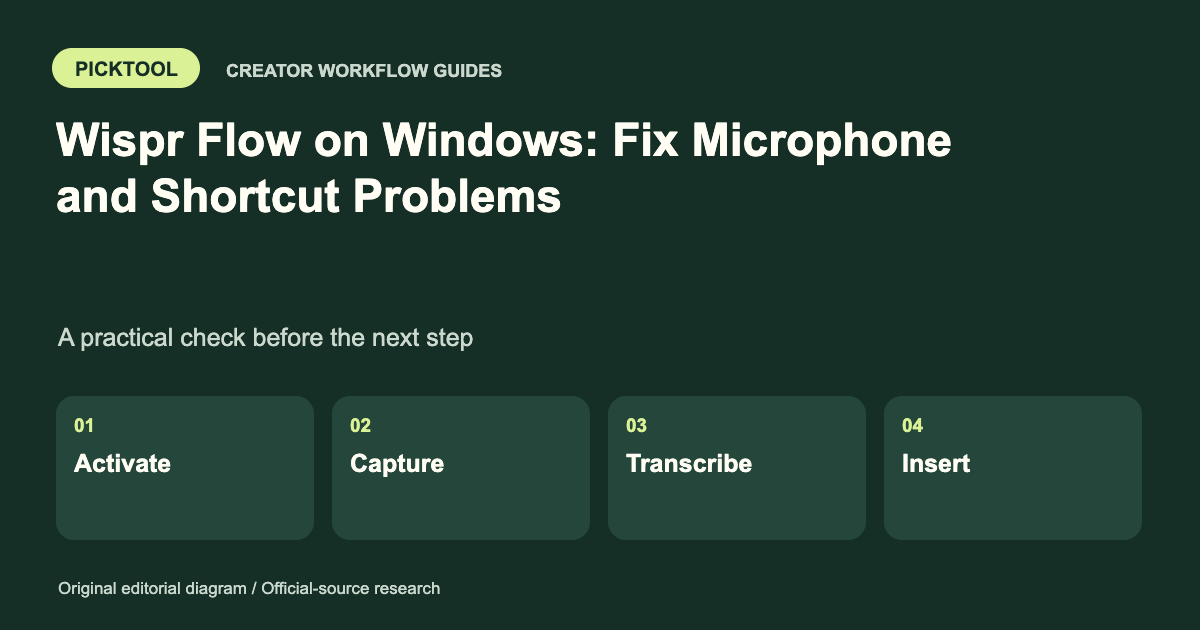
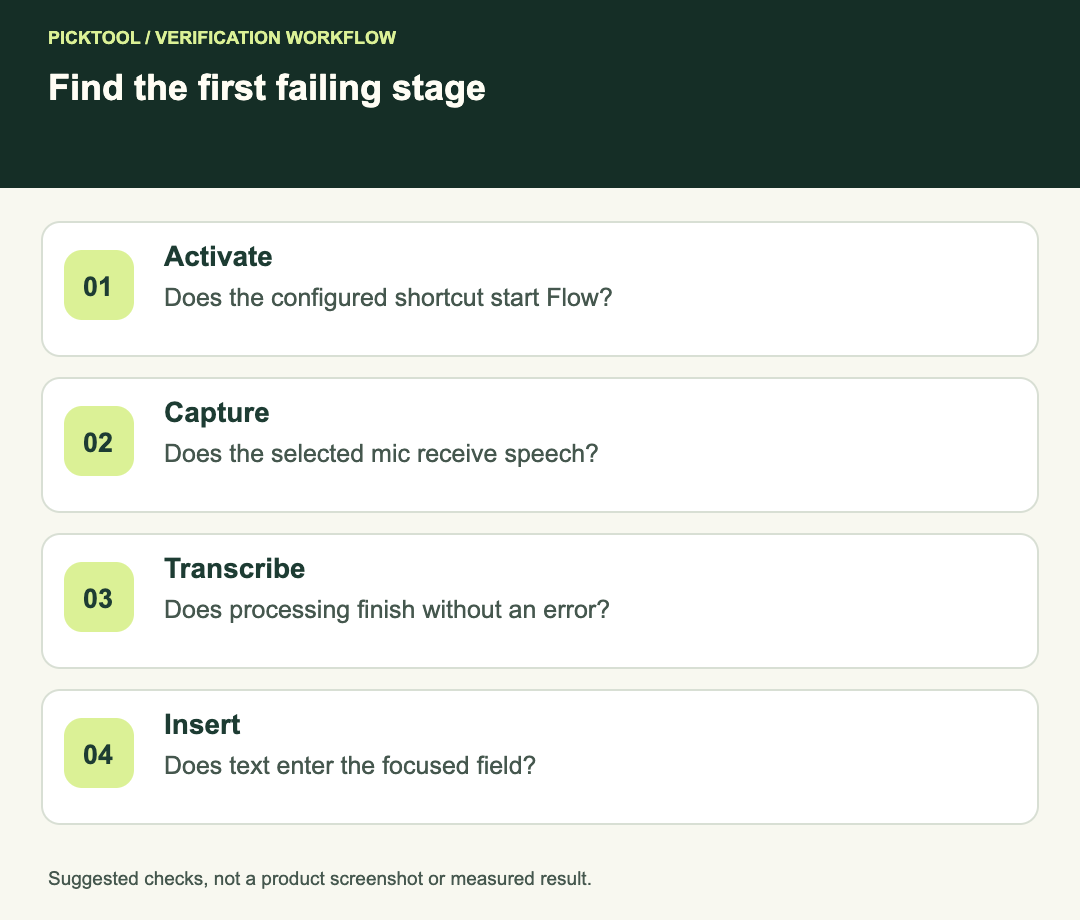
Test four stages separately: does the shortcut start Flow, does the selected microphone capture speech, does transcription finish, and does text enter the focused field? Fix the first failing stage, then repeat the same short test before changing anything else.
“Flow is not working” can mean a silent microphone, an inactive shortcut, a transcription error or text appearing in the wrong place. These are different failure points. A staged check avoids reinstalling a working microphone driver when the actual issue is an unfocused text field.
This workflow is for Windows. Do not follow a Mac tutorial that asks you to grant macOS Accessibility permissions on a Windows computer. The relevant controls, supported hardware and error messages must match your actual system.
Check support and the exact symptom
Flow's system-requirements page currently lists Windows x64 support and says Windows ARM/Snapdragon systems are unsupported. Check the current page before assuming a device is compatible. A microphone permission change does not resolve an unsupported platform. [1]
Write down what happens: no activation, a silent audio indicator, an explicit “No model available” error, or completed text that fails to insert. Include your Flow version and Windows version in a troubleshooting note. These observations help you select the right support instructions rather than a universal “reset everything” recipe.
| Stage | Small test | If it fails |
|---|---|---|
| Activation | Focus a plain note and use the configured shortcut | Check the shortcut and competing app bindings |
| Capture | Speak a short sentence using the selected input | Check the device and microphone permissions |
| Transcription | Wait for the short sentence to finish processing | Record the actual error and connectivity state |
| Insertion | Inspect the focused note field | Compare a second ordinary text field |
Start with a plain text field
Open a non-sensitive note, place the cursor in the text field and use Flow's configured dictation shortcut. The first-dictation guide describes starting and stopping dictation with a focused input. [2] Use the shortcut shown in your installation rather than assuming a key combination from an old tutorial is still configured.
Speak a short fictional test such as “This is a microphone check for the design brief.” Keep the sentence unchanged across attempts. A changing test phrase makes it harder to tell whether a setting improved capture or merely produced an easier recognition example.
If Flow never activates, inspect its shortcut setting and whether another application captures the same keys. Test with the competing application out of the way. Do not disable broad security protections or change administrator policy to make a shortcut work.
Check Windows microphone access and input selection
Flow's microphone troubleshooting and first-dictation help identify microphone access and the selected input as key checks. On Windows, review the system's Microphone privacy settings, including access for desktop apps, and confirm the intended device inside Flow. [2][3]
A connected headset is not proof that the application is using its microphone. Compare device names and watch the available input indication while speaking. If a webcam, laptop and headset all provide microphones, choose deliberately rather than relying on an ambiguous default.
Check physical mute controls and whether the microphone works in another ordinary recording application. If every application is silent, investigate the device or Windows input path. If another application captures normally but Flow does not, focus on Flow's selection, access and current support guidance.
Change one setting, repeat the same sentence, and record the result. Keep a working device selected while troubleshooting. Randomly removing drivers or deleting application data is a poor first test because it can destroy the useful baseline.
Treat transcription errors separately
If activation and capture work but processing fails, note the exact message. Flow has a dedicated help article for “No model available,” covering checks such as connectivity, restarting the app and input selection. [4] Use that article when the error matches; it is not evidence that every blank result has the same cause.
Try a short, non-sensitive sentence after confirming a normal network connection. If a workplace network or device policy is involved, ask the administrator for the supported setup. Do not bypass organization controls or upload private recordings to an unrelated troubleshooting website.
Keep the original error text and the approximate time. A useful support report says which stage failed and what already passed. “Shortcut starts, selected microphone shows input, then this error appears” narrows the issue more than “dictation broken.”
Check insertion in the destination app
If transcription completes in a plain note but not in the target application, return to the target field and confirm it is editable and focused. Compare a simple message box with a special editor, protected document or embedded form. Different results point toward the insertion context rather than microphone capture.
Review the text before sending. A successful insertion test confirms a path, not the accuracy of every future name, number or instruction. If only certain terms are wrong, use the terminology workflow instead of treating the entire microphone setup as faulty.
Use dictionary and snippet checks for repeated names or reusable text ↗
When to stop and contact support
Escalate with the Flow and Windows versions, device name, exact error and the four-stage results. Share a minimal non-sensitive example when appropriate. Preserve useful settings and avoid repeated reinstalls unless the current support instructions call for one.
A confirmed result should be specific: “the same sentence activates, captures, transcribes and inserts in this field.” It should not become “all apps and all microphones now work.” Recheck the real destination after an application update or a change in audio hardware.
Read the broader Wispr Flow review and workflow limitations ↗
This is an official-source troubleshooting guide with a proposed test sequence. We did not install Flow on Windows, test an ARM device or measure dictation accuracy.
How we assessed this tool
Official-source research and a review of the first 10 organic Google results for the recorded query. Workflows, diagrams and fictional examples are editorial guidance. No installed-product, paid-generation or output-quality benchmark was performed.
Questions & answers
Why does Flow work in a note but not in another app?
The capture path may be working while the destination field or insertion path fails. Confirm that field is editable and focused, then compare a simple field in the same app.
Should I reinstall Flow first?
Start by identifying the failing stage and checking the matching official help. Reinstallation can remove a useful baseline without resolving a device or permission problem.
Does this guide prove my Windows device is supported?
No. Check Flow’s current system requirements and your device architecture. The reviewed documentation lists Windows x64 and excludes Windows ARM/Snapdragon.
Sources & check dates
- 1. Wispr Flow: system requirements ↗ · Checked 2026-10-29
- 2. Wispr Flow: starting your first dictation ↗ · Checked 2026-10-29
- 3. Wispr Flow: microphone not recording ↗ · Checked 2026-10-29
- 4. Wispr Flow: No model available troubleshooting ↗ · Checked 2026-10-29