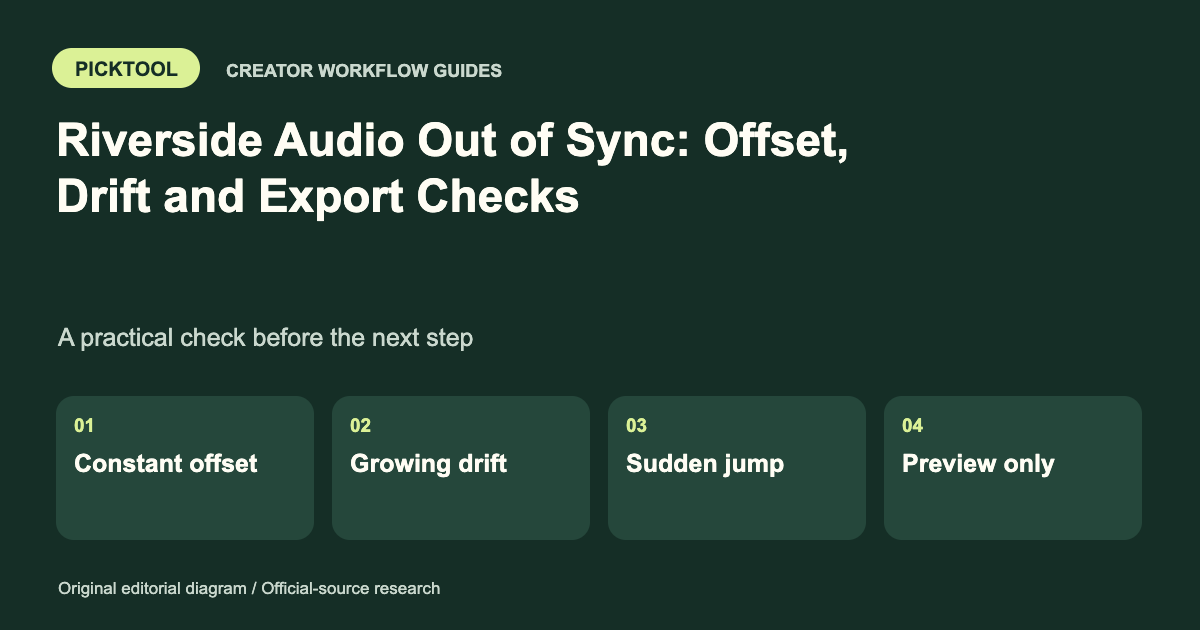
Check the same clear sound near the start, middle and end. A similar error throughout suggests a fixed offset; an error that grows suggests drift. Compare original files and a short export so a preview or player problem is not mistaken for a recording problem.
Moving a track until the first spoken word looks correct is only a partial sync check. A recording can begin in alignment and slowly drift, or appear out of sync in one preview while exporting correctly. The useful first step is to describe the timing pattern before choosing an edit.
This guide provides an editor-neutral diagnostic process for Riverside recordings. It does not claim that one button repairs every source or that a new export can recover missing media. Preserve the original downloads and work on copies.
Compare the same recording stage
Label what you are examining: the live call, downloaded local files, a cloud recording, an editor preview or an exported video. Do not compare a mixed preview with a different participant's separate file and assume they share the same start point.
Riverside's official syncing guide discusses aligning independently captured audio and video using a recognizable event such as a clap or matching waveforms. [1] That is a useful principle for diagnosis, but it does not prove that every discrepancy in your project has the same cause or that a specific editing application is free.
Choose an event with a visible action and a sharp sound. A hand clap can help in a planned test; in an existing interview, find a clearly articulated consonant or another visible sound-producing action. Use several events rather than judging one ambiguous mouth movement.
Fixed offset, drift or playback-only delay?
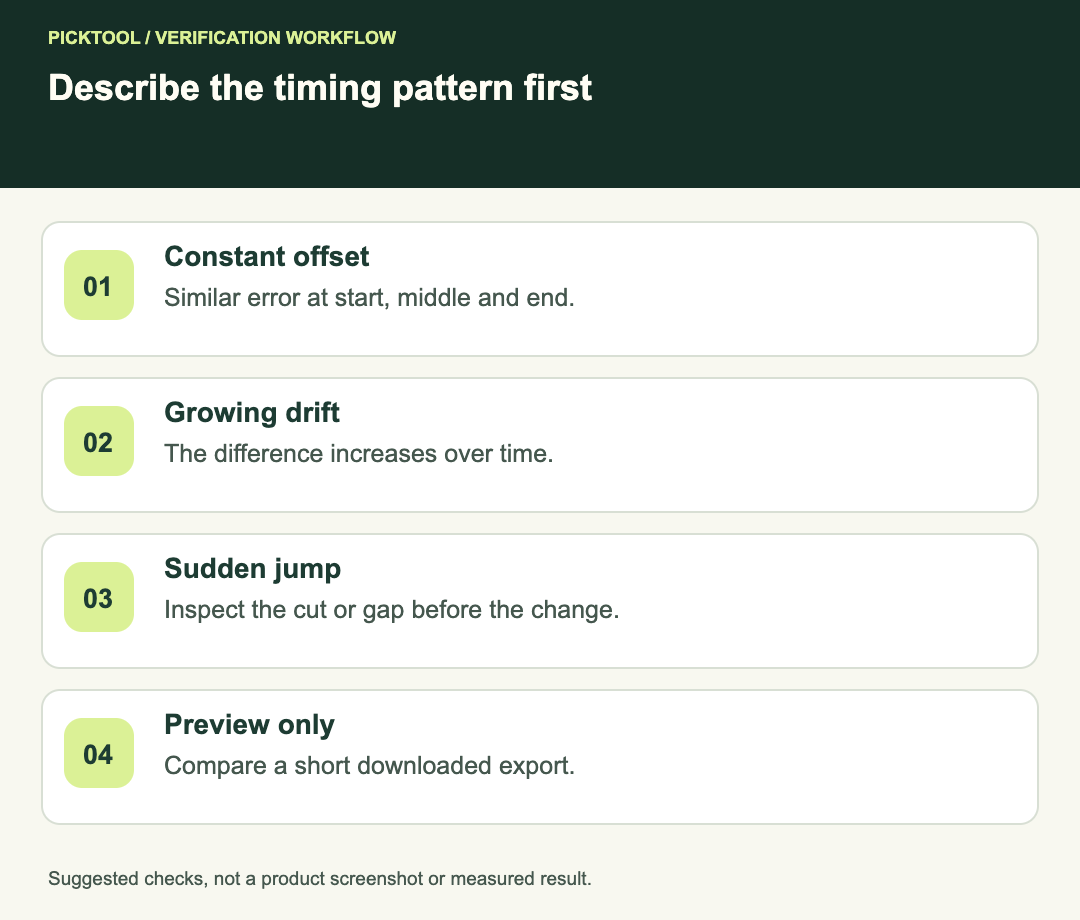
| Pattern | What it suggests | First safe action |
|---|---|---|
| Similar misalignment at start, middle and end | A constant offset may be present | Adjust a working copy, then recheck all points |
| Alignment worsens over time | Timing rates or source continuity need inspection | Check file properties and intervening edits |
| Sudden jump after one point | A cut, gap or missing section may matter | Inspect the boundary rather than the whole track |
| Only one preview or device looks wrong | Playback or rendering path may be involved | Compare a short exported file in another player |
These observations guide investigation; they do not identify a hardware clock fault or a codec problem by themselves. Document the actual pattern before changing file settings.
Make a three-point timing note
For a fictional interview, imagine the audio is approximately 200 milliseconds late at minute one, minute ten and minute twenty. A constant adjustment is a reasonable hypothesis to test. Now imagine it is aligned at minute one, late at minute ten and later still at minute twenty. Moving the entire track will improve one point while leaving others wrong.
Those values are illustrative, not Riverside measurements. In your project, note the event, the direction of the error and the approximate amount. Avoid false precision if the footage does not provide a clear visual reference. A useful note might be “guest consonant appears early near the end,” followed by a reproducible timestamp.
If there is a sudden jump, inspect the cut immediately before it. A removed video section without a matching audio edit can resemble drift when you only compare the beginning and end. Look for gaps, speed changes and accidentally separated linked clips.
Test a constant adjustment on a copy
When the error appears constant, move only the intended audio source in a duplicate sequence. Keep track of whether you moved it earlier or later. Recheck the same three events and make a short export around the most revealing section.
Do not add a second shifted copy underneath the first. Two audible versions can introduce an echo-like sound and create a new problem. Mute reference audio after using it for alignment, while preserving it in the project if needed for later checks.
A corrected first sentence is not acceptance. Check another speaker, a cut and the end of the export. If the offset changes between those locations, return to the diagnosis instead of repeatedly nudging the track.
Investigate gradual drift without guessing
Compare source durations and inspect whether the files were transcoded, re-timed or recorded separately. Record the source and project frame-rate information, plus audio sample-rate information, for an editor or support request. Do not simply relabel metadata or change a sample-rate setting and assume the underlying timing has been corrected.
For a long recording, an editor may need a carefully measured timing correction or multiple aligned sections. That decision depends on the actual sources. Time stretching can affect speech or picture, so audition the result and keep the original available. If part of a file is missing, a timing adjustment cannot recreate the missing content.
Rule out the preview path
Export a short representative section and play the downloaded file in another ordinary player. Compare with wired or built-in playback if a wireless monitoring path makes judgment uncertain. This is a diagnostic comparison, not a claim that wireless playback always causes sync errors.
If the export is correct and only the editor preview is wrong, focus on that preview path and the application's support guidance. If the same mismatch appears in the source and the export, retain the samples and investigate capture or assembly. Do not repeatedly re-encode an entire episode to test a ten-second question.
Handoff and acceptance
Save the original filenames, project version, three timing observations and the tested correction. An editor should be able to repeat your comparison without guessing which export you watched. Before the next session, use Riverside's host preparation checklist and record a short confirmation take. [2]
Check echo separately if a timing change reveals duplicate audio ↗
Read the broader Riverside workflow review ↗
The timing examples and decision table are suggested editorial diagnostics. We did not record, realign or benchmark Riverside media for this article.
How we assessed this tool
Official-source research and a review of the first 10 organic Google results for the recorded query. Workflows, diagrams and fictional examples are editorial guidance. No installed-product, paid-generation or output-quality benchmark was performed.
Questions & answers
Why does the start look correct but the end does not?
The error may grow over time, or an edit may introduce a jump. Compare start, middle and end and inspect cuts before applying a global shift.
Will moving the whole audio track fix drift?
A constant shift changes the offset everywhere by the same amount. It does not by itself correct a mismatch that grows over time.
Should I re-export the full episode for every test?
Use a short section that exposes the problem first. Once it passes, check the complete final export at several points.
Sources & check dates
- 1. Riverside: syncing audio and video sources ↗ · Checked 2026-10-29
- 2. Riverside: host recording checklist ↗ · Checked 2026-10-29