Remove the background, export PNG, and reopen the download over contrasting colors. Check actual transparency, edge quality and final pixel dimensions. A checkerboard visible inside an exported image may be drawn artwork rather than transparent pixels.
A transparent image is useful only when it behaves correctly in the next design. A white fringe may be invisible on a white page and obvious on a dark thumbnail. A checkerboard may look like transparency while remaining part of the picture. The goal is to inspect the downloaded PNG in its final context, not to approve a canvas preview alone.
Remove the background in Recraft
Recraft's background-tools documentation describes selecting an image and using Remove background in the context panel. It also warns that background editing works with a 1024-pixel smaller-side resolution: larger images can be downscaled before editing, which can reduce quality, and border artifacts can occur. Check the current documentation and your resulting file rather than assuming the starting resolution survives every edit. [1]
After editing, select the asset and use Export to choose PNG and the required dimensions. Recraft's export documentation covers the export panel and format selection. [2] PNG supports transparency, but the chosen format does not automatically remove an opaque background that remains in the artwork.
Keep an untouched source before removal. For a client cutout, save a second version for edge cleanup rather than overwriting the only high-resolution original. If the result needs further enlargement, assess the final enlarged file again; an acceptable small preview does not establish clean large edges.
Distinguish three different background problems
| What you see | Possible explanation | Next check |
|---|---|---|
| White square around the subject | Opaque pixels remain | Place the PNG over a dark rectangle |
| Checkerboard travels with the image | The pattern is drawn into the artwork | Open it in an editor that displays alpha |
| Thin light outline around hair | Edge pixels retain background color | Inspect on several solid backgrounds |
| Missing holes inside an object | Removal missed enclosed background areas | Inspect handles, gaps and letter counters |
Do not diagnose from a screenshot of the file browser alone. A viewer can display transparent areas on white. Open the actual file in a graphics editor and put a colored layer beneath it. If the supposedly empty region becomes the layer's color, it is transparent in that inspection.
Use a three-background test
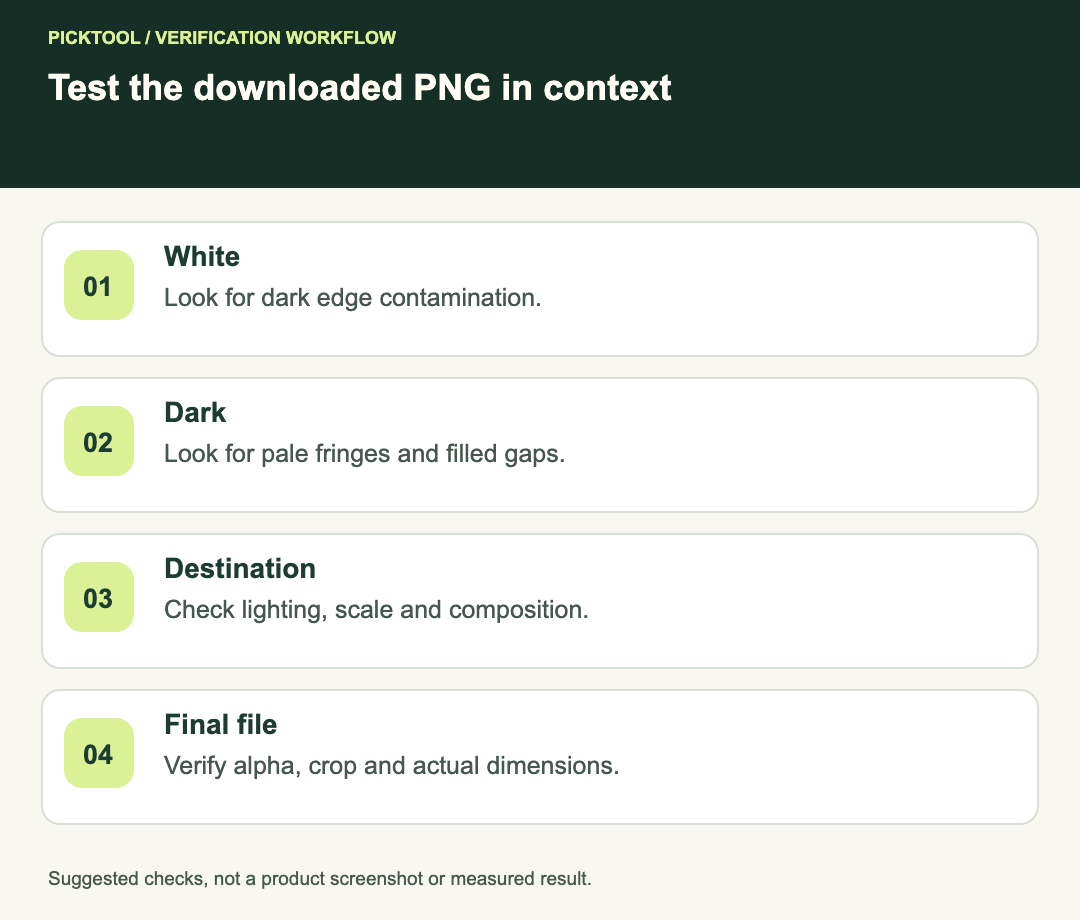
Make three temporary placements: one over white, one over a dark color and one over the actual destination. White helps reveal dark edge contamination. Dark colors reveal pale halos. The destination shows whether the cutout works at its intended scale and contrast.
Inspect broad outlines first, then the difficult details: hair, fur, transparent glass, thin stems and small gaps. Background removal can require a tradeoff between preserving fine detail and avoiding visible contamination. Do not accept clipped fingers or missing product handles just because the outer silhouette looks clean.
For a fictional product thumbnail, imagine a pale mug photographed against white and then placed on a dark green banner. A white fringe around the handle might be hidden in the original setting. The useful check is the handle opening on green, not a claim that the remover works equally well on every subject.
Set size from the final placement
Write down the required pixel dimensions before exporting. If the image will occupy a small portion of a thumbnail, its useful resolution is the size of that placed subject, not merely the size of the overall canvas. Avoid enlarging a tiny crop and mistaking the bigger file for recovered detail.
After download, inspect the file's actual width and height. If removal or a later edit reduced the image, the original upload dimensions are no longer a reliable delivery label. Keep the subject's crop and padding consistent across a set of product cards so that one image does not appear much smaller than the others.
For example, two 800-by-800 files can still display very differently if one contains a tightly cropped object and the other contains large transparent margins. Standardizing the canvas alone will not standardize perceived subject size. Create a placement reference or reusable frame when producing a series.
Avoid fixing the wrong thing
If an opaque square remains, investigate transparency before sharpening. If the whole subject is soft, investigate source size and resizing before cleaning individual edges. If the outline is clean but the subject looks pasted on, the issue may be lighting, perspective or composition rather than alpha.
When a complex cutout fails, preserve the current export and return to the source for a targeted repair. Repeating removal without comparing versions can replace one acceptable edge with a worse one. Keep a simple decision record: problem area, change made and result at the destination size.
Delivery checks for a transparent PNG
- Confirm the file is PNG and that the intended empty areas are actually transparent.
- Inspect the subject over light, dark and destination backgrounds.
- Check enclosed gaps and delicate edges, not just the outer border.
- Verify actual dimensions after the last edit or upscale.
- Keep a source master and a clearly named approved export.
- Include the intended placement size when sending the image to a collaborator.
Use the SVG inspection workflow when the recipient needs vector artwork ↗
Read the broader Recraft review before choosing a production workflow ↗
Evidence and limits
The product steps and documented background-tool limitation come from Recraft. The contrasting-background test and delivery checklist are a suggested quality-control process. We did not run a paid generation, compare removal accuracy or measure edge quality across products.
How we assessed this tool
Official-source research and a review of the first 10 organic Google results for the recorded query. Workflows, diagrams and fictional examples are editorial guidance. No installed-product, paid-generation or output-quality benchmark was performed.
Questions & answers
Why does my transparent PNG look white?
The viewer may display alpha over white, or opaque pixels may remain. Open the file over a dark layer to distinguish these cases.
Is a checkerboard proof of transparency?
No. A generated or flattened image can contain an actual checkerboard pattern. Check alpha in the downloaded file.
Should I upscale before or after removal?
Keep the original, check the current tool’s resolution behavior and inspect the final result after every size-changing step. There is no universal sequence that guarantees clean edges.
Sources & check dates
- 1. Recraft: background tools and editing resolution ↗ · Checked 2026-10-29
- 2. Recraft: exporting an image ↗ · Checked 2026-10-29