Import the texture as a multi-sprite asset, use the Sprite Editor to slice the actual layout, then verify frame rectangles, order and pivots before creating an animation. Equal-grid sheets and tightly packed atlases need different inspection; automatic slicing is not a quality guarantee.
A sprite sheet that animates smoothly in a generator can wobble after import if the slices use inconsistent bounds or pivots. It can also wobble because the source artwork changes between frames. Unity's import controls and an AI generator's output quality are separate parts of the workflow.
Start with one action in a small test scene. Preserve the original image and record the engine version before changing import settings. This makes it possible to distinguish a layout mistake from a later controller or transition problem.
Identify the sheet layout
Count rows, columns, margins and gutters. Check whether cells are equal size or tightly packed around separate shapes. Also identify empty cells and the intended reading order. The image's total dimensions do not reveal all of this information by themselves.
Spritix advertises sprite-sheet and individual-frame exports among its delivery options. [1] Treat that as an export inventory, not a guarantee about a Unity importer or a metadata schema. Inspect the actual downloaded asset and use the appropriate engine workflow.
For a fictional sheet with four equal 256-pixel-wide cells and no gaps, the total width is 1024 pixels. If a border or gutter is present, slicing it as four equal content-only cells will crop the wrong places. Write the layout down before opening the slicing controls.
Set up a multi-sprite texture
Unity's official learning tutorial describes selecting the sheet, setting Sprite Mode to Multiple, opening Sprite Editor and slicing the sheet. It then creates an animation from selected sprites. The tutorial was verified with Unity 2019.4; use it for the core concept and consult the manual matching your installed version for current controls. [2]
The reviewed Unity 6 manual distinguishes automatic boundaries from grid-based slicing and documents pivot and slicing options. [3] Select the method that matches the asset rather than choosing Automatic by habit.
| Asset layout | Starting method | Inspection after slicing |
|---|---|---|
| Equal cells with known dimensions | Grid by cell size or count | Check margins, gutters and every boundary |
| Irregular isolated shapes | Automatic or carefully defined rectangles | Check missed details and unwanted splits |
| Packed atlas with metadata | Compatible documented importer | Verify schema, trimming and offsets |
| Separate PNG frames | Individual import workflow | Keep consistent canvas and pivot intent |
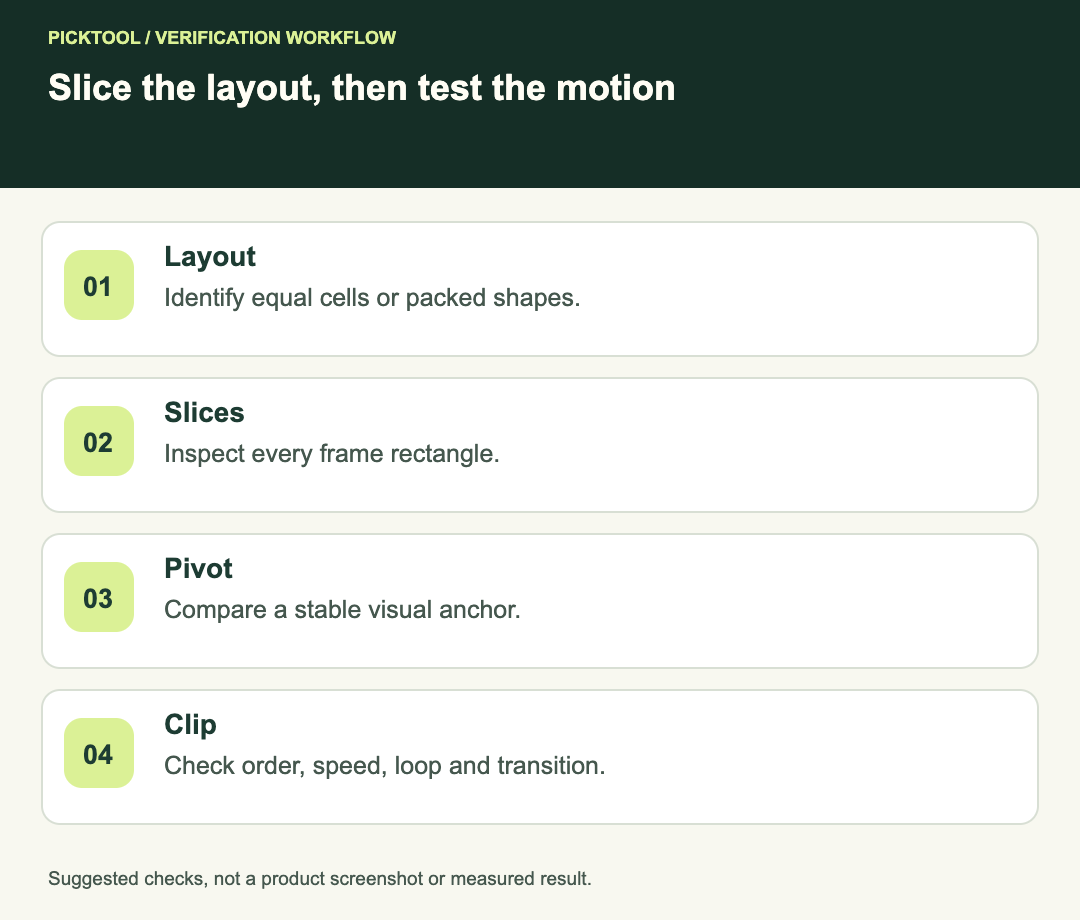
Inspect slices before creating the clip
Zoom into thin details, shadows and semi-transparent edges. Automatic bounds can be inappropriate when separate pieces of one frame are disconnected. Conversely, a coarse grid can include a neighboring frame if the margins are wrong. Inspect the rectangles against the artwork, not just the number of sprites created.
Apply the reviewed slicing changes and inspect the resulting sprite assets. Keep their names ordered consistently. If a sheet includes idle and attack rows, create separate sequences rather than selecting everything and expecting the engine to infer the action boundaries.
Do not confuse animation-frame slicing with nine-slice UI scaling. They solve different problems. A panel that stretches while preserving corners is not the same task as a sequence of character poses.
Keep a stable pivot and visible anchor
Compare the character's feet or another intended anchor against a fixed guide. If the cropped bounds shrink differently in every frame, a shared normalized pivot may still produce an apparent positional shift. Consistent cells and an intentional pivot policy make that behavior easier to reason about.
If the frame rectangles and anchor are correct but the character's proportions change, inspect the source artwork. Changing pivots cannot restore a missing hand or repair a face that changes identity. Correct or replace the affected frame while preserving the intended motion and timing.
For a jump, deliberate movement away from the baseline is expected. The goal is to remove accidental wobble, not to pin every action to the floor. Keep the animation's visual motion separate from the GameObject movement you intend to control in code.
Create and inspect the animation sequence
Unity's learning workflow creates an animation clip from selected sprites. [2] After creation, inspect the timeline's order rather than assuming the selection was assembled correctly. Check the first frame, last frame and every transition that looked questionable in the sheet.
Choose a deliberate playback rate. A fictional four-frame sequence at eight equally timed frames per second completes a nominal cycle in half a second. That example explains timing; it is not a benchmark or a recommended speed for all actions.
Decide whether the clip should loop. A looping idle can use one acceptance test, while an attack may need to play once and transition. Inspect the complete cycle and state transition in the test scene before incorporating complex controller logic.
Check presentation and handoff
View the sprite at the intended game scale and against different backgrounds. Look for edge halos, excessive empty padding, clipping and filtering that does not suit the art style. A sheet that looks attractive at full size may lose important details in a small in-game character.
Keep an import note with engine version, slicing method, grid values, pivot intent, frame order and clip timing. If another developer needs the same asset, include the untouched source and the note rather than only a screenshot of the editor.
- All expected action frames exist and unwanted empty cells are excluded.
- Slice rectangles preserve the intended details without including neighbors.
- Pivots and visual anchors behave as intended.
- Clip order, speed and loop behavior have been reviewed.
- A simple scene passes before controller integration.
Use the Godot workflow for the same asset's frame and anchor checks ↗
Read the source-backed Spritix export overview ↗
This guide uses official Unity documentation and a proposed inspection sequence. We did not run Unity, generate sprite assets or measure engine performance.
How we assessed this tool
Official-source research and a review of the first 10 organic Google results for the recorded query. Workflows, diagrams and fictional examples are editorial guidance. No installed-product, paid-generation or output-quality benchmark was performed.
Questions & answers
Should I always use Automatic slicing?
No. Use a method that matches the layout and inspect the resulting rectangles. An equal-grid sheet often benefits from explicit cell dimensions or counts.
Why does a sprite shift even when its pivot setting is the same?
Different crop bounds can change the visual position associated with that pivot. Compare the frame rectangles and a visible anchor, then inspect source consistency.
Does importing a sprite sheet create a finished character controller?
No. Frame import and animation setup are only part of the work. Test the clip before adding transitions, movement and gameplay behavior.
Sources & check dates
- 1. Spritix: official export overview ↗ · Checked 2026-10-29
- 2. Unity Learn: introduction to sprite animations, version noted in tutorial ↗ · Checked 2026-10-29
- 3. Unity 6.2 manual: automatic and grid slicing ↗ · Checked 2026-10-29