Use a selectable caption track for editable captions and a separate burned-in version when the visual design requires fixed text. If you use both, check the actual Shorts player for duplicate captions, readability and interface overlap. Review auto-generated text before relying on it.
Captions can be part of the video pixels or a separate track managed by the player. Those choices affect editing, accessibility and reuse. A clean production workflow decides which deliverables are needed before the text is styled and the final video is exported.
There is no evidence in this guide that one caption style guarantees more reach, ranking or revenue. The aim is to make the spoken information understandable and the final viewing experience reliable.
Distinguish tracks from burned-in text
A subtitle or caption track is separate timed text that a supporting player can display. Burned-in text is part of the video image. Once a video with burned-in wording is exported, correcting that wording normally requires a new video export rather than a subtitle-track edit.
YouTube's official help describes adding captions in Studio by selecting a video, choosing the language and using options such as file upload, auto-sync or manual entry. Its format page documents supported file types and restrictions. [1][2] Check the controls available for the particular video and account rather than assuming every interface is identical.
| Delivery | Main use | Check before publishing |
|---|---|---|
| Clean video plus caption track | Editable timed captions | Text, language label and playback timing |
| Video with burned-in text | Fixed visual style | Readability, placement and spelling in the pixels |
| Both | Design plus a separate caption option | Avoid an unintended duplicate presentation |
| Auto-generated track | Starting point for review | Correct recognition errors and omissions |
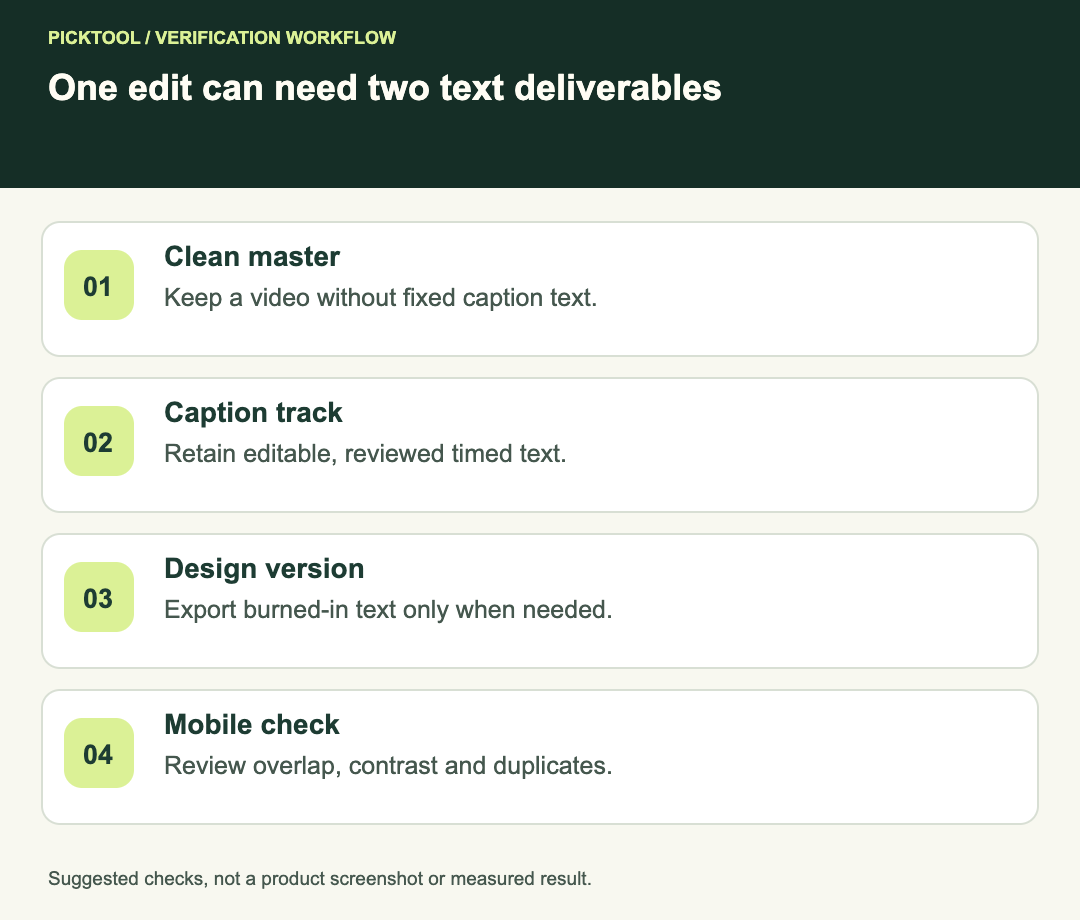
Keep a clean video master
Export a clean version before committing to decorative text. Retain the approved caption text separately. This lets you create another aspect ratio, language or client revision without trying to remove words already baked into the picture.
Use filenames that connect the assets to the same edit. A fictional set might be lumora-short-v05-clean.mp4, lumora-short-v05-en.srt and lumora-short-v05-text.mp4. The filenames do not validate the contents, but they reduce the chance of pairing a new video with old timestamps.
If a client only needs one final deliverable, explain which version it is and what can still be edited. Avoid promising an editable caption workflow when you are delivering only a video with fixed text.
Review automatic captions as a draft
YouTube's automatic-caption help warns that recognition can be affected by factors such as poor audio, accents, dialects, overlapping speech and other conditions. It recommends reviewing captions. [3] A caption's presence is not evidence that every word is correct.
Check names, numbers, negations and short technical terms first. In a fast clip, changing “can” to “can't” can reverse the message while still producing a fluent sentence. Compare with the final audio and any approved script, not just the text produced by another AI tool.
Also check meaningful sounds and speaker changes when they are needed for comprehension. Decorative word-by-word text may emphasize the hook while omitting information a viewer needs with the sound off. Decide whether it is a design layer, complete captions or both.
Design for the actual mobile view
Inspect the uploaded Short on the player where viewers will see it. Captions that look clear in a large editor can collide with interface elements or cover the subject on a phone. Use the destination's current guidance and your actual preview rather than a made-up universal pixel margin.
Check contrast over the brightest and darkest parts of the clip. A single background sample does not establish readability throughout a moving shot. Review small words and punctuation at the intended size, and ensure rapid animation does not make the sentence harder to follow.
Keep essential text away from visually busy areas where possible. If the subject or camera moves, inspect the entire clip rather than approving one still frame. A safe placement at the opening can obscure a face later.
Prevent double captions
If the video already has burned-in text, turn the selectable caption track on during review and observe the result. The two layers may show the same words in different positions or at different times. Decide whether the combined experience remains useful.
Do not remove an accessible caption option simply to hide a design mistake without considering the viewer's needs. Instead, review the burned-in treatment, track content and placement together. A clean master makes it easier to choose a better version before publication.
For a fictional clip with a large opening hook and full spoken captions, inspect the opening separately. The hook might be editorial on-screen text rather than a transcript. The separate caption track should represent the audio appropriately instead of copying every decorative label indiscriminately.
Check timing after the last edit
An inserted intro, a trimmed pause or a speed change can make an old subtitle file wrong. Check the first line, a middle line, the final line and any edited boundary against the actual export. If the mismatch changes across the clip, investigate the edit rather than applying an unexplained global shift.
Upload the intended file and review the destination result. A local player passing is useful but does not prove the platform interpreted every cue or style as expected. Keep the approved text-and-timing master for future corrections.
Choose and validate the subtitle file format for your delivery ↗
Read the HiClip workflow review before choosing a clipping tool ↗
Before you publish
- The video, caption file and language belong to the same final revision.
- Automatic text has been checked against the audio.
- Burned-in words are readable throughout the moving clip.
- The mobile player does not create unintended duplicate captions or overlap.
- The clean master and approved caption source are retained.
This is a source-backed delivery guide with suggested editorial checks. We did not upload a test Short, measure audience retention or compare caption styles in an experiment.
How we assessed this tool
Official-source research and a review of the first 10 organic Google results for the recorded query. Workflows, diagrams and fictional examples are editorial guidance. No installed-product, paid-generation or output-quality benchmark was performed.
Questions & answers
Are burned-in captions editable after export?
They are part of the video pixels. Correcting them normally requires editing the source project and exporting the video again.
Should I review auto-generated captions?
Yes. Check the final audio, especially names, numbers, negations and technical terms. YouTube documents recognition limitations.
Do captions guarantee more Shorts views?
No. This guide does not establish a causal effect on reach or ranking. Its checks focus on comprehension and reliable delivery.
Sources & check dates
- 1. YouTube: add subtitles and captions ↗ · Checked 2026-10-29
- 2. YouTube: supported caption file formats ↗ · Checked 2026-10-29
- 3. YouTube: automatic captions and review ↗ · Checked 2026-10-29