In Godot 4, use AnimatedSprite2D with a SpriteFrames resource, add frames from the sheet using the correct grid, and check order, speed and looping. Inspect a stable anchor across frames before assuming that a wobble is an engine-import problem.
An AI sprite sheet is an image asset until its frames are selected, ordered and timed in the engine. A convincing generator preview does not prove that the downloaded sheet has equal cells, consistent padding or a stable character anchor. Import a small test animation before building a full character controller around it.
Inventory the asset before importing
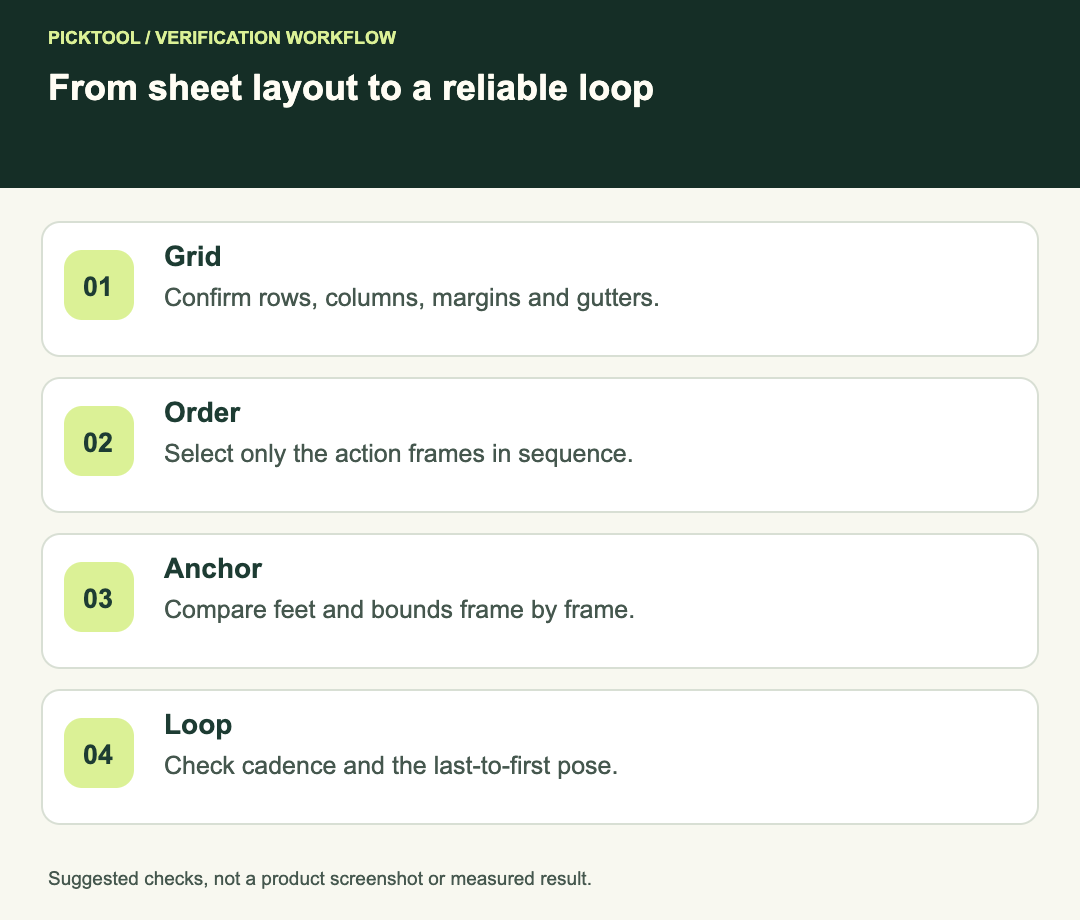
Record the sheet dimensions, number of rows and columns, cell spacing, action names and intended frame order. Keep the original download unchanged. If a tool also exports individual PNGs or atlas metadata, treat those as different delivery options rather than assuming every JSON file is automatically compatible with Godot.
Spritix's official site advertises sprite sheets, individual frames and other export forms. [1] That is a useful description of available assets, not proof that a particular download will import into every engine without configuration. Inspect the actual format you received.
For a fictional zero-margin sheet that is 1024 pixels wide and 256 pixels high with four equal horizontal frames, each cell would be 256 by 256 pixels. That calculation only works with the stated layout. Gutters, margins or uneven packing change the crop boundaries.
Build the smallest Godot animation
Godot's stable 2D animation tutorial documents AnimatedSprite2D and a SpriteFrames resource. For a sheet, use the add-from-sprite-sheet control, set the horizontal and vertical frame counts, select the desired frames and add them to an animation. Its example then adjusts playback speed in the SpriteFrames panel. [2]
Use one action first, such as idle. Give it a clear name and include only its intended frames. Preview before adding movement logic, collisions or transitions. This isolates the asset setup from the rest of the game.
| Input check | Example decision | Why it matters |
|---|---|---|
| Sheet layout | Four equal columns, one row, no gutter | Determines crop boundaries |
| Frame order | Idle 01, 02, 03, 04 | Prevents an unintended jump |
| Timing | Test a deliberate frame rate | Separates cadence from bad drawing |
| Anchor | Feet align with a fixed guide | Reveals unwanted visual wobble |
Check frame order and empty cells
Step through frames slowly. Do not assume that a sheet reads left to right and top to bottom if the export instructions describe a different order. Remove unintended blank cells from the action, but keep the untouched original so you can revisit the decision.
Name extracted frames with consistent zero padding if you use separate PNGs. A file list ordered as frame-1, frame-10, frame-2 can create an unintended sequence if the selection follows lexical order. Inspect the animation's actual frame list rather than inferring it from filenames alone.
Check the last-to-first transition as carefully as the middle. A duplicate final frame can create a pause, while a pose that changes abruptly at the boundary can make the loop feel broken. Decide whether the action should loop at all; an attack and an idle animation may have different requirements.
Separate anchor errors from artwork drift
Place a temporary horizontal guide at the character's foot position and compare every frame. If the whole character shifts because the cell bounds or offsets differ, correct the import or alignment. If the feet remain aligned but the face, clothing or proportions change, the source artwork itself may be inconsistent.
Do not use a moving offset to hide a changing character silhouette without checking the action. Some vertical movement is intentional in a jump or walk. The acceptance question is whether the motion matches the intended action, not whether every pixel stays still.
Keep the collision shape separate from decorative frame changes unless the game design calls for animated collisions. An inconsistent visual outline should not silently change gameplay behavior. Test a simple scene with a stable reference before integrating the production controller.
Set timing intentionally
Godot's SpriteFrames resource stores animation frames and playback information, including speed and per-frame duration controls. [3] Equal spacing in the sheet does not require every pose to stay on screen for the same time, although a uniform test is a useful starting point.
For a fictional four-frame loop at eight frames per second with equal durations, the nominal cycle is half a second. That is an arithmetic example, not a recommended universal speed. Compare the animation at the intended game scale and choose timing that suits the action.
If a motion feels wrong, first identify whether the issue is ordering, cadence, a missing transition pose or inconsistent drawing. Increasing speed can hide some defects while making the action less readable. It does not repair missing or contradictory frames.
Verify the actual game presentation
Check the sprite at its intended scale, against both light and dark backgrounds and with the project's chosen texture filtering. Pixel-art and painted styles can need different presentation decisions. Do not apply one filtering setting to every art style solely because a tutorial used it.
Test one complete loop and a transition into and out of the action. Look for edge clipping, unwanted transparent padding and a visible jump when the animation changes. Keep a short note of the engine version and import settings so another developer can reproduce the setup.
Compare Unity's slicing workflow when delivering the same asset to another engine ↗
Check Spritix's source-backed export overview ↗
The Godot controls and resource capabilities are documented in the official engine sources. The grid arithmetic, anchor test and acceptance checks are editorial guidance. We did not generate a sheet or run a Godot project for this article.
How we assessed this tool
Official-source research and a review of the first 10 organic Google results for the recorded query. Workflows, diagrams and fictional examples are editorial guidance. No installed-product, paid-generation or output-quality benchmark was performed.
Questions & answers
Will any exported atlas JSON import automatically into Godot?
Do not assume compatibility. Check the actual schema and supported importer. A PNG sheet can be configured through the documented SpriteFrames workflow.
Why does my character wobble after import?
Compare cell bounds, offsets and a stable anchor. If those are consistent but the character changes shape between frames, inspect the source artwork.
Should an attack animation loop?
Choose according to the game action. Inspect the animation’s loop setting and the transition into the next state rather than copying the idle setup.
Sources & check dates
- 1. Spritix: official export overview ↗ · Checked 2026-10-29
- 2. Godot: 2D sprite animation ↗ · Checked 2026-10-29
- 3. Godot: SpriteFrames resource ↗ · Checked 2026-10-29