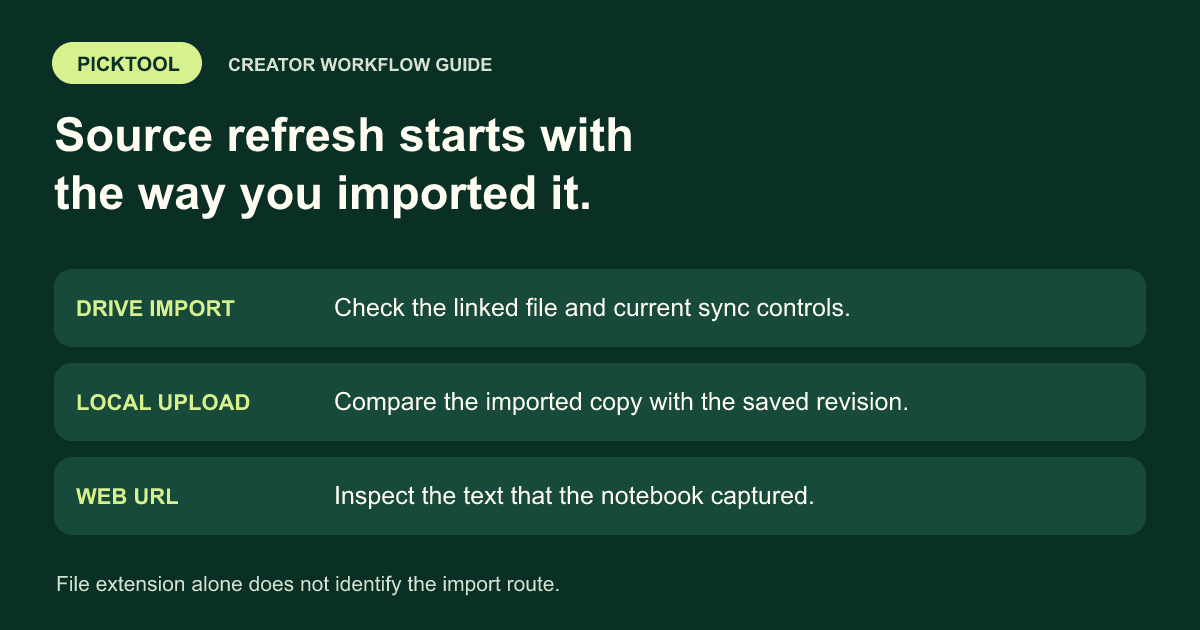
Check how the source entered the notebook, then inspect its current contents. Google now documents automatic Drive syncing with a manual sync option. A local upload, a web import and a Drive-linked source are different paths, and an old answer or exported brief is a separate freshness check.
If NotebookLM keeps using an old figure after you edit a document, first find which version the notebook actually has. The file on your laptop, the linked Drive document, the source viewer and an exported brief can represent different revisions. Rewriting the question will not resolve every mismatch.
This guide concerns Google's research product, currently labeled Gemini Notebook in its official help. We retain NotebookLM in the title because that is the name many readers search for. The workflow below helps locate stale information without assuming that every source needs to be deleted and uploaded again.
Start with the import route, not the extension
A PDF is a file format, not a description of how you connected it. You might upload a PDF from your computer, import a supported file through Drive, or add a website URL that points to a PDF. Record the actual route before applying a refresh instruction.
Google's current help describes sources as copies or auto-synced versions of imported material. For Drive imports, it documents periodic syncing and an optional manual control labeled “Click to sync with Google Drive.” [1] That does not establish an identical refresh schedule for every other import route.
| What you added | First check | Safe next action |
|---|---|---|
| A linked Drive document | Same account, correct file and current source text | Use the documented sync route if needed |
| A file selected from your computer | Imported revision versus the saved local revision | Add the current approved copy if the notebook is stale |
| A website URL | Text actually present in the source viewer | Verify the current page and refresh or re-import as appropriate |
| Pasted text | Whether the pasted passage contains the change | Replace the outdated text deliberately |
Do not infer a permanent live connection merely because the source title matches your document's name. Two different files can have the same title, and an upload can retain a familiar filename after the original changes.
Know why older instructions differ
Google announced automatic Drive syncing on May 26, 2026, describing a change from manually updating imported Docs, Sheets and Slides. The announcement says there is no separate end-user setting for that feature. A tutorial written before that change may describe a different default workflow. [2]
The current help uses broader language about Drive imports than the announcement's named examples. For a Drive-stored PDF or another supported file, inspect its actual contents and available controls instead of treating a file-type table from an old tutorial as a guarantee. This is a verification step, not a claim that every Drive file behaves identically.
A third-party extension may offer additional organization or bulk operations, but it is not a prerequisite established by Google's native-sync announcement. Check the built-in behavior and your actual problem before adding another product or granting access to a research collection.
Verify the original file and access
Open the original through the link associated with the source, if available. Confirm the correct account, document owner and revision. Check that the change was saved to the file you imported rather than a similarly named copy in another folder.
Google's current source help says Drive imports require at least view access. If the original is deleted or access is lost, the source can become inaccessible and is not used by chat or Studio. [1] A missing or inactive source is therefore an access investigation, not simply a slow refresh.
Request the appropriate access from the owner when necessary. Avoid creating a public copy of a private client document as a workaround. If a teammate can open the original but you cannot, capture that difference in the support note rather than repeatedly changing the prompt.
Inspect the source before testing the answer
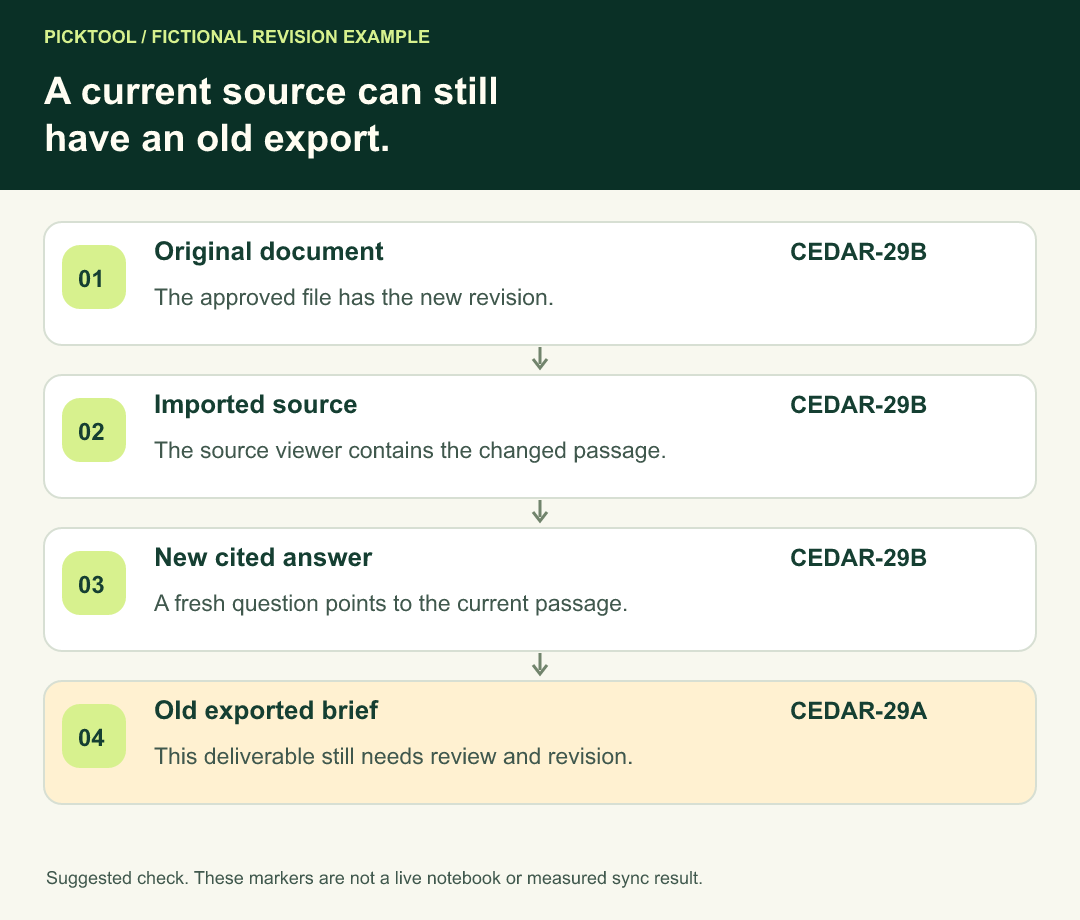
Choose one unmistakable, non-sensitive change to look for. For a document you own and are allowed to edit, a temporary revision marker can make the comparison easier. In a fictional example, the old brief contains “Review code: CEDAR-29A” and the approved revision contains “Review code: CEDAR-29B.” These are teaching examples, not a test we performed.
Open the source viewer and find the relevant passage. If the old marker remains, focus on the import or sync path. If the new marker is visible but your final brief still contains the old one, the problem has moved to the answer, artifact or export stage.
Use a real changed sentence when adding a marker would be inappropriate. The aim is to compare identifiable content, not to alter a shared production document just for troubleshooting. Keep the original and avoid inserting diagnostic text into a client deliverable by accident.
Ask a fresh, narrowly scoped question
Once the source shows the current passage, select the intended source and ask a new question about that exact detail. Google's chat help documents source selection and citation navigation, including opening a citation to review the supporting passage. [3]
A useful fictional question is: “Using the current launch brief, what is the review code? Cite the supporting passage.” Compare the answer with the source viewer. This proposed test isolates one detail; it does not prove the accuracy of the entire notebook.
If multiple versions are selected, narrow the source set or clearly distinguish their names. An old approved brief and a new draft may legitimately contain different figures. The next question should identify which version governs the decision rather than asking the model to guess what “latest” means.
Check saved artifacts and exports separately
Treat a previous chat response, saved note, Audio Overview, report and downloaded file as separate outputs. Record which one contains the stale information. Do not assume a source update is proof that every older output has been rewritten.
If a previous artifact still contains the old detail, create or revise the required output from the verified source set, then inspect it again. This is a suggested acceptance process rather than a promise about automatic regeneration behavior. Preserve the old revision when it matters for an audit or client approval.
Google specifically notes that changes made in exported Docs or Sheets do not synchronize back to the original notebook content. [4] Editing an exported brief can therefore leave another version unchanged. Decide where the master should live and label the final approved output clearly.
Replace a stale copy carefully
When replacement is necessary, retain the original filename, source URL and revision note. Add the current approved version, confirm it imported correctly, and review the affected claims before removing an older source that may still be referenced by existing work.
For web imports, check what was actually captured. Google's help says an HTML URL import uses page text rather than importing embedded videos, images or nested webpages. [1] A missing chart or video detail may be an import-content limitation rather than an update delay. Use an authorized, suitable source for the needed evidence.
Avoid stripping qualifications or table notes merely to make a file easier to upload. A smaller file that loses the denominator behind a statistic can create a more serious research error than the original freshness problem.
Verify the passages and table context behind the refreshed answer ↗
A short escalation note
If the source remains stale, record the import route, affected file type, account or access status, exact changed passage and what the source viewer displays. Include the approximate time and available sync control. Use a small non-sensitive example where possible.
State what passed: original file updated, access confirmed, or source current but output old. That distinction gives support a reproducible problem. “NotebookLM is broken” does not identify the failing stage, and a generic list of browser resets may skip the actual cause.
Read the broader Gemini Notebook review and its workflow boundaries ↗
Acceptance before reusing the research
- The intended original file and import route are identified.
- The source viewer contains the current approved passage.
- A new, focused answer cites that passage correctly.
- The artifact or export you will share has been checked independently.
- The final revision is labeled, and unresolved differences are recorded.
The product behavior cited here comes from current Google documentation and its dated announcement. The version-marker example, diagnostic sequence and acceptance checks are original editorial guidance. We did not modify a user's notebook, install an extension or measure sync latency.
How we assessed this tool
Official-source research and a review of the first 10 organic Google results for the recorded query. Workflows, diagrams and fictional examples are editorial guidance. No installed-product, paid-generation or output-quality benchmark was performed.
Questions & answers
Do I need an extension for automatic Drive syncing?
Google describes it as a native feature without a separate end-user setting. Check the built-in source behavior before evaluating optional third-party tools.
Why is an old answer still using the previous number?
Inspect the current source first, then ask a fresh question with the intended version selected. Check the particular saved artifact or export separately; its age is a different issue from source freshness.
Should I delete the source as the first fix?
First confirm the import route, current contents and access. If replacement is needed, verify the new copy and preserve useful revision information before removing older material.
Sources & check dates
- 1. Google: source imports, Drive syncing and limitations ↗ · Checked 2026-10-29
- 2. Google Workspace Updates: automatic Drive syncing announcement, May 26, 2026 ↗ · Checked 2026-10-29
- 3. Google: selected sources and citation review ↗ · Checked 2026-10-29
- 4. Google: notebook artifacts and export behavior ↗ · Checked 2026-10-29