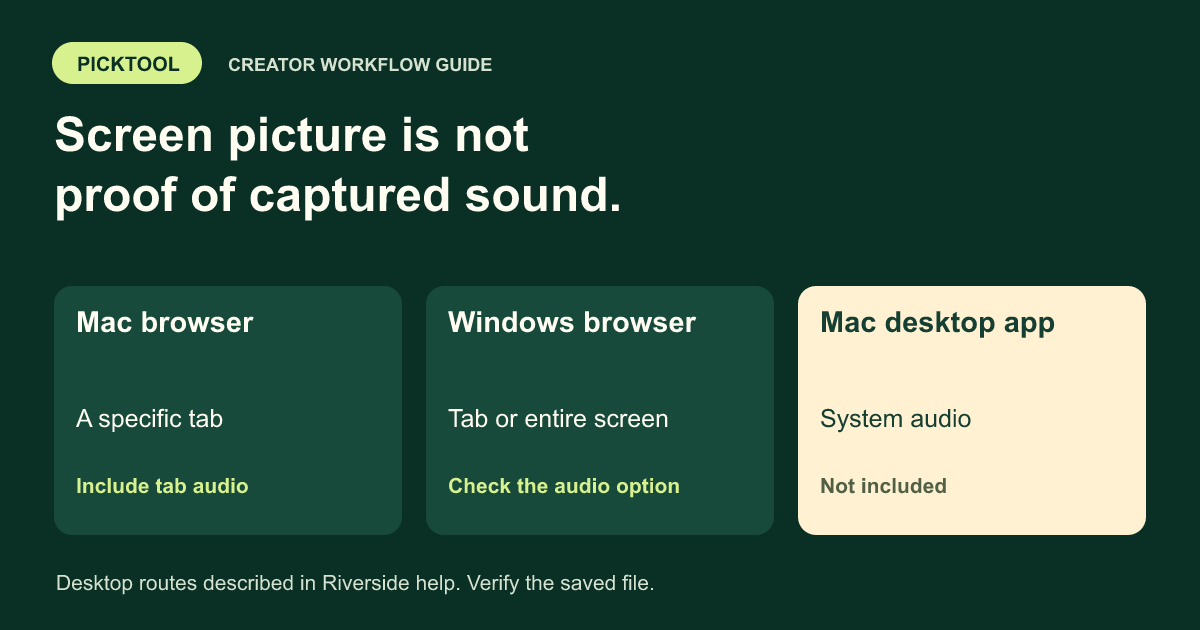
Riverside documents screen-share sound through the browser: Mac users share audio from a specific tab, while Windows users can use a tab or the entire screen. Its Mac desktop app does not capture screen-share system audio. Choose the supported route, enable its audio option, then test the saved recording and final export.
Seeing a moving screen in Riverside does not prove that the recording contains the sound playing on that screen. Your microphone, the shared video's audio and the final edited soundtrack are separate paths. Identify the path that is missing before changing microphones or adding routing software.
This guide focuses on desktop screen-share audio. Mobile screen capture has its own capabilities and permissions, so the browser instructions below should not be treated as a mobile setup guide.
Choose the route that can capture the sound
Riverside's sound-specific help distinguishes three cases: Windows browser sharing can include tab or entire-screen audio; Mac browser sharing supports audio from a specific tab; and the Mac desktop app does not include screen-share audio. [1] A tutorial that treats every platform as the same case can send you to a control your setup does not provide.
| Recording route | Documented audio scope | First check |
|---|---|---|
| Mac, supported browser | A specific browser tab | Select the actual playing tab and its audio option |
| Windows, supported browser | A tab or the entire screen | Select the intended source and include its audio |
| Riverside Mac desktop app | No screen-share system audio | Choose another documented route when that sound is required |
Use a supported browser that exposes the relevant audio option. If your picker looks different from a tutorial, identify the browser, operating system and source type instead of assuming an option is hidden behind an unrelated microphone setting.
Riverside's Mac-app guide separately confirms that its screen recordings do not include system audio. [2] Granting screen access lets the app capture the picture; it is not evidence that this audio limitation has changed.
Share the actual tab and include its audio
In the studio's browser workflow, Riverside documents Share, then Screen, followed by choosing a tab, window or entire screen. Its instructions call out the audio-sharing control in the system picker. [3] For a Mac tab-audio workflow, choose the tab that is actually playing the content, not a separate control panel or a window that happens to show the same website.
Enable the relevant tab-audio option before confirming the share. Then play a short, authorized sample. A silent pause or a muted media player cannot establish whether capture works. Verify the player's own volume and mute state as well as the share selection.
Riverside's sound help says the source tab or program's volume controls the shared sound level. [1] Treat the source playback control and your microphone level as different adjustments. Turning up your microphone is not a substitute for including the shared audio route.
Keep microphone and shared playback separate
Wear headphones during the test when practical, so the shared video's sound does not return through room speakers into the microphone. Otherwise, a recording can contain an acoustic copy even when the intended screen-audio path is missing. Hearing something in the final mix is not enough to identify where it came from.
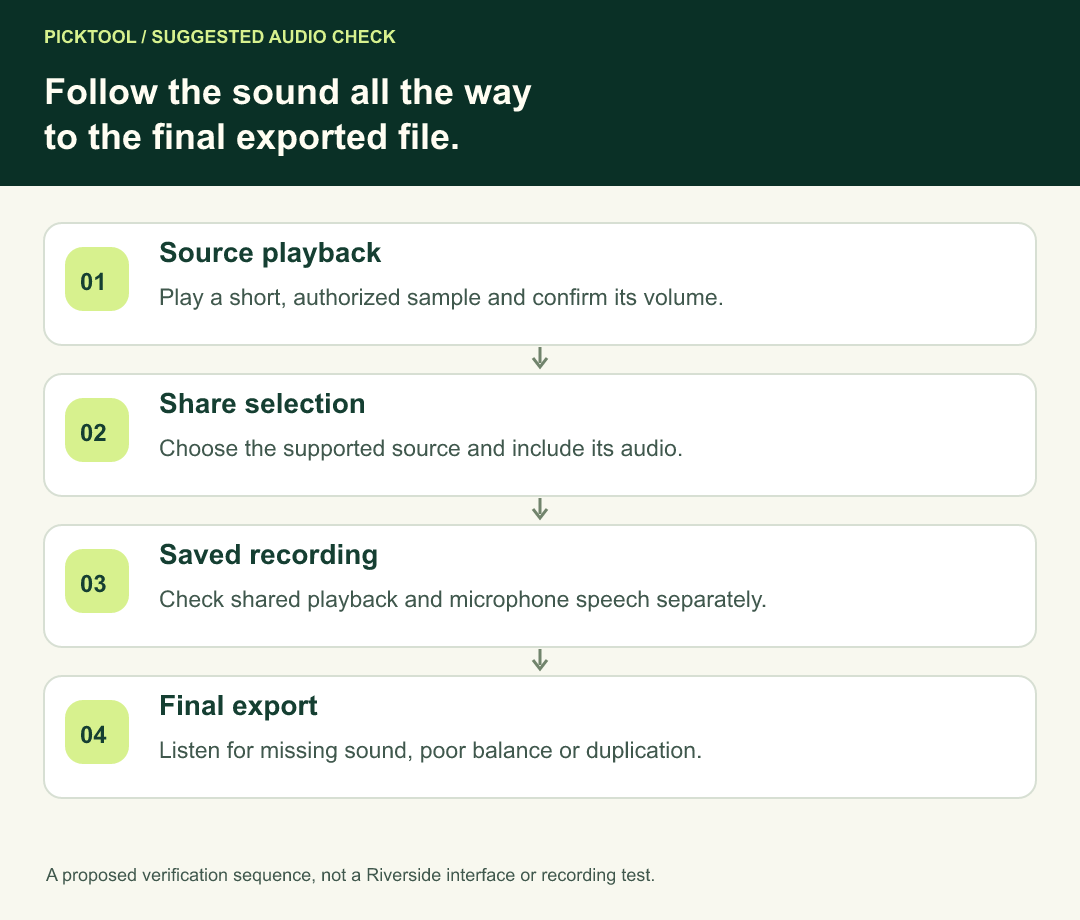
Use a simple fictional test sequence: say “microphone check,” pause, play a brief non-sensitive sound, then speak over a second short sample. This is a proposed diagnostic, not a recording we made. It helps distinguish voice capture, shared playback and their combined level.
Listen for duplication, distortion and a source that overwhelms speech. If the voice is clean alone but a delayed copy appears during playback, inspect the return path before applying cleanup to every track. Avoid changing several audio controls at once because you lose the useful comparison.
Use the documented file route when appropriate
For an authorized media file on a Mac, Riverside's sound help suggests the Media Board, or playing the file inside a browser tab that you share with audio. [1] Choose the route that matches the session and inspect its current controls. This guide does not establish availability for every file, plan or special media type.
Do not use a microphone pointed at speakers as the default substitute for a missing digital path. It changes the recording into a room capture and makes source-level editing harder. A short controlled test of the documented route is more informative than introducing several unverified virtual-device connections.
If the content requires permissions you do not have, use an approved sample for diagnosis. Testing capture does not establish permission to republish a clip. Keep private notifications and unrelated windows out of the shared area as part of an ordinary recording check.
Confirm a recording, not just live monitoring
Make a short test recording and review the saved result. Ask a participant to confirm what they hear if you are testing a live session, but also check the downloaded or recorded media you will edit. A successful live listening path does not by itself validate the final deliverable.
Riverside's track-download help describes opening the relevant project and recording, finding the media under Tracks and choosing Download beside the intended item. [4] Select the media track associated with the screen share rather than assuming the host's microphone file contains every sound from the session.
Inspect the available files and their labels. A participant recording, media track and combined edit serve different roles. The format overview distinguishes local high-quality tracks, editor exports and cloud recordings; it does not justify calling every available file an identical master. [5]
Check the edit and final export
Import the intended sources and listen to each relevant audio path on its own. If the media has sound alone but the timeline is silent, investigate mute states, routing and placement in the edit. If it is already silent in the saved source, focus on the capture selection and audio option.
Check where the screen share begins and ends. A late-starting share may need deliberate placement relative to the conversation. Do not solve alignment by leaving a second mixed reference track audible underneath the intended sources, which can create duplication.
Export a short representative section and play the downloaded file. Verify the voice, shared playback and their balance together. Then inspect the real final export at the opening, a representative middle section and the ending. A working editor preview is only one part of the delivery path.
Isolate echo and duplicate audio paths before adding processing ↗
Check constant offset and drift when shared audio and picture do not align ↗
Save a setup note that someone can repeat
Record the operating system, browser or Mac app, selected share source, audio option, media playback state and the result of the short saved test. Include which downloaded file and export you reviewed. This is more useful than an unexplained list of toggles.
If the expected option is absent, compare your route with the current official help and send support the exact setup and a minimal non-sensitive example. Do not claim that a screen-access permission proves audio support, or that a microphone meter proves the shared content is being recorded.
Read the broader Riverside review before choosing a recording workflow ↗
Acceptance before the real session
- The chosen platform and share source support the required sound.
- The appropriate audio option and media playback are enabled.
- The short saved test contains voice and shared sound as intended.
- The edit uses the correct sources without unintended duplication.
- The final exported file has been played and checked.
The platform distinctions and controls above are supported by Riverside's documentation. The test sequence, routing diagram and acceptance checklist are original editorial guidance. We did not record a Riverside session, test a Mac app installation or benchmark audio quality.
How we assessed this tool
Official-source research and a review of the first 10 organic Google results for the recorded query. Workflows, diagrams and fictional examples are editorial guidance. No installed-product, paid-generation or output-quality benchmark was performed.
Questions & answers
Can the Riverside Mac desktop app record screen-share system audio?
The reviewed official Mac-app guide says it does not include system audio. Use the current documented browser or media-file route when that sound is required, then test the saved result.
Why can I hear a video but not find its sound in my recording?
Listening, sharing and recording are separate stages. Check the chosen source and audio option, then inspect the intended saved media rather than relying only on what you heard live.
Does a moving microphone meter prove screen audio is captured?
No. It can reflect your voice or sound leaking from speakers. Test microphone speech and shared playback separately, then review the saved file.
Sources & check dates
- 1. Riverside: can screen sharing include sound? ↗ · Checked 2026-10-29
- 2. Riverside: screen sharing on the Mac desktop app ↗ · Checked 2026-10-29
- 3. Riverside: screen sharing in the studio ↗ · Checked 2026-10-29
- 4. Riverside: download Media Board or screen-share tracks ↗ · Checked 2026-10-29
- 5. Riverside: video and audio file formats ↗ · Checked 2026-10-29